
A Browser That Never Quite Closes
A user closed Google Chrome with the X in the top right corner, then opened Windows Task Manager. Several chrome.exe processes were still running, together holding between 300MB and 700MB of memory. The setting meant to stop exactly that, "Continue running background apps after Google Chrome is closed", had already been switched off.
Contents
- A Browser That Never Quite Closes
- The Gemini Switch Behind the Leftover Processes
- How to Switch It Off
- What Else the AI Menu Controls
- Help Pages That Now Answer Through Gemini
- A Different Problem: the Tab That Ate 5GB
- How the Numbers Climbed
- A Fix With No Explanation
- The 4GB File Chrome Downloads Quietly
- How to See What Is Using Your Memory
- What to Know
Those hundreds of megabytes are hard to spare on the machines most people own. A laptop with 8GB of RAM gives up close to a tenth of its memory to a browser its owner believes is shut, and the loss stays invisible until somebody reads the process list.
The usual fixes were tried first. Every extension was disabled, installed web apps were removed, the cache and cookies were cleared, Chrome's settings were reset to their defaults, and hardware acceleration, page preloading and the local AI features were all turned off. Task Manager showed the same processes afterwards.
The answer came from a new Chrome profile created without signing in to a Google account. That profile closed completely and left nothing behind. The cause was not a broken installation but a preference stored with the account, sitting inside Chrome's AI menu and switched on by default.
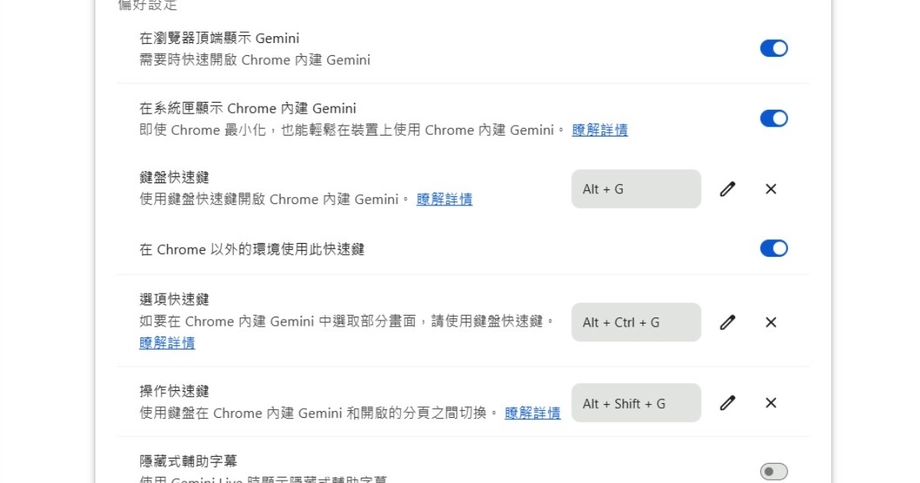
The option is labelled "Show Gemini in Chrome in system tray and turn on keyboard shortcut" on Windows, with a Mac version that puts the Gemini icon in the menu bar. With it on, the icon waits in the tray and a keyboard shortcut summons the assistant whether or not a browser window is open. A process held in memory is how Chrome keeps that promise, and it is why clicking the X stops feeling like quitting.
The Gemini Switch Behind the Leftover Processes
The control sits two levels down in Chrome's settings, in a section called AI innovations, and it is one of roughly a dozen switches Google has added for its assistant. Google's own documentation once described the behaviour plainly: switch it on and the Gemini icon stays in the Windows system tray, ready to be called up with a shortcut at any moment.
Nothing in Task Manager labels the leftover processes as Gemini. The entry is chrome.exe, the same name every tab, extension and helper uses. On a machine where Chrome is the main browser, that makes 300MB to 700MB look like a system fault rather than a setting that can be flipped inside a browser page.
The switch also explains why the standard advice failed. Clearing data, resetting settings and removing extensions all work on the parts of Chrome stored locally. The Gemini preference follows the Google account, so a reset restores it along with everything else.
How to Switch It Off
The change takes about a minute and needs no tools outside the browser.
- Type chrome://settings/ai/gemini into the address bar, or use the three dot menu, then Settings, then AI innovations and Gemini in Chrome.
- In the Preferences block, switch off "Show Gemini in Chrome in system tray and turn on keyboard shortcut". On a Mac, the same control is worded for the menu bar.
- Close Chrome and open Task Manager. The chrome.exe entries should drop away, unless another program is using the same browser engine.
The tray icon goes with the setting, so the shortcut no longer answers while Chrome is closed. Opening the browser brings the assistant back, and switching the option on again restores the previous behaviour at any time.
What Else the AI Menu Controls
Gemini's controls are spread across several switches in the same panel. "Show Gemini at the top of the browser" places the assistant button beside the address bar. "Let Chrome browse for you" enables the agent that clicks through pages on a user's behalf. Two more options, "History search, powered by AI" and "Help me write", sit in the same list.
A related control sits under Permissions: "Share current tab by default", which sends the contents of the open tab to Google's servers when the assistant is asked about it. Turning that off keeps a page from being shared unless the user chooses to.
Not every reader will find these menus. Google limits Gemini in Chrome to users aged 18 and over in the United States, signed in to the latest English (US) build of Chrome on a Mac or Windows computer, and the feature has been rolling out gradually.
Help Pages That Now Answer Through Gemini
Google's support documentation used to spell out the tray behaviour and the path to the setting in a few lines of text. The current version of that page is much harder to use for the same job, because Google has moved its help content to answers written by AI and sends people with a problem to the Gemini chatbot instead. The route to a one line answer now runs through a conversation, which is a strange design for a switch that exists to cut background activity.
A Different Problem: the Tab That Ate 5GB
Chrome's leftover processes are one complaint. The Gemini web app open in a tab was another, and a much larger one. On November 14, 2026, a Reddit user posting as That_Discussion_7513 shared a screenshot of a single Gemini tab holding more than 5GB of memory, one report putting the figure at 5.4GB, with the caption "Why is this happening".
Google's official support account replied in the thread, and the answer was short.
This has now been resolved, so please let us know if you are still experiencing any issues with high memory usage in Chrome.
That reply, which drew wide attention on November 26, 2026, is close to the whole of Google's public explanation. The company did not say what caused the growth, when it began or what changed in the code.
How the Numbers Climbed
Complaints about the Gemini tab go back more than a year, and the figures collected in those threads show how far a chat window can drift.
- A conversation with five messages and one PDF attachment grew from about 250MB to 900MB in 15 minutes, according to the user who tracked it.
- An older thread showed a Gemini tab at 3.6GB, with memory rising along with session time rather than with the length of the chat.
- Other users reported 1.1GB, 6.4GB and a peak of 8.4GB in a single tab.
- A Chromium bug report from December 2025 recorded a session with no account signed in jumping from 100MB to 1.3GB alongside 85,621 page elements.
Gemini should sit at a few hundred megabytes, or about 1GB during a long conversation. Figures of 5GB and above exceed the total memory of many budget laptops, and 8.4GB is more than an 8GB machine has to give, which is why those users described typing and switching windows slowing to a crawl.
A Fix With No Explanation
The repair was made on Google's side, inside the Gemini web app. Nothing needs to be downloaded or installed, and reloading the tab picks up the change. Users who want to be sure can reload Gemini tabs, start a fresh chat instead of continuing a very long one, and check for a Chrome update under Settings and then About Chrome.
Two things remain open. Independent testing has not confirmed the fix across every case, and long conversations may still let memory grow as page elements pile up. Google has asked anyone who sees the old behaviour to report it through the Report an issue option in Chrome.
The 4GB File Chrome Downloads Quietly
A third story sits behind the first two, this one about disk space. Since Chrome 147, Google has been installing a file called weights.bin, the machine learning data behind Gemini Nano, a small AI model that runs on the computer rather than on Google's servers. The file lands in a folder named OptGuideOnDeviceModel and takes up close to 4GB, and it arrives without a clear prompt, as the privacy researcher Alexander Hanff documented.
On Windows the folder sits at %LOCALAPPDATA%\Google\Chrome\User Data\OptGuideOnDeviceModel\, on a Mac at ~/Library/Application Support/Google/Chrome/OptGuideOnDeviceModel/ and on Linux at ~/.config/google-chrome/OptGuideOnDeviceModel/. The model powers writing help in text fields, autocomplete suggestions, detection of scam and malicious sites, and some experimental tools. The AI Mode button in the address bar does not use it, because those requests go to Google's servers.
Google only enables the download on machines that meet a hardware list: Windows 10 or 11, macOS Ventura or newer, or ChromeOS, with 22GB of free storage, 16GB of RAM, a processor with at least four cores and a graphics chip with 4GB of video memory. The download can take about 15 minutes, and deleting the folder alone does not keep it away, because Chrome fetches it again after a restart. Some users in Europe do not see it at all, since parts of Gemini remain restricted there for privacy and regulatory reasons.
Checking takes one page. Typing chrome://on-device-internals/ and opening the Model Status tab shows whether the model is present and where it is stored. Stopping it means visiting chrome://flags, setting optimization-guide-on-device-model and prompt-api-for-gemini-nano to Disabled, relaunching Chrome and then deleting the folder. On Windows, a registry value named GenAILocalFoundationalModelSettings, set to 0 under HKEY_LOCAL_MACHINE\SOFTWARE\Policies\Google\Chrome, blocks the download for good, though editing the registry carries its own risk.
The 20GB figure sometimes attached to Chrome's AI features covers the wider set of local models, not this single file.
How to See What Is Using Your Memory
Chrome carries its own task manager, and it is more specific than the one in Windows. Pressing Shift and Esc together on Windows or Linux opens it, and it can also be reached through the three dot menu, More tools and Task manager. The Memory footprint column sorts every tab, extension and background process by the RAM it holds.
A quicker check needs no window. Hovering the pointer over a tab shows its memory in a small card, and if that card is missing, Settings and then Appearance holds the switch to turn it on. Selecting an entry in the task manager and pressing End Process shuts that tab or process down, with the risk that unsaved work in the tab is lost.
For steady control rather than a single repair, Memory Saver under Settings and Performance puts inactive tabs to sleep and returns their memory until the user comes back to them. It will not help with the tab currently in use.
What to Know
- A Gemini preference that keeps the assistant reachable from the Windows system tray or Mac menu bar holds 300MB to 700MB of memory after Chrome is closed.
- The switch sits at chrome://settings/ai/gemini under AI innovations, and turning it off lets Chrome exit completely.
- Google's support account said the separate bug that let a Gemini tab reach 5GB and beyond, with reports up to 8.4GB, has been fixed in the web app.
- Normal use should keep Gemini at a few hundred megabytes, or about 1GB in a long chat.
- Chrome 147 onwards also downloads a model file of nearly 4GB, checked at chrome://on-device-internals/ and blocked through two flags or a registry value.